The best AI tools for creators
Navid Moazzez: In this session, I will give you a complete overview of the best AI tools for creators. Which ones are worth it to invest in? My goal for this video is that this likely will be the last session you need to watch when it comes to AI tools and what to choose. I've done the research for you. You don't need to do that anymore.
Obvously you can do your own due diligence when it comes to the tools that are relevant for your business, but I have researched the best tools here and I will give you an overview of the tools that I recommend and what I pay for myself. And I will actually show you my subscriptions and also little bit of an insight into each tool and some of the tools I will go into and actually demo a little bit.
And if you are inside of AI Creator OS do let me know and I can do specific tutorials about tools that you want to see more about so I can prioritize these. But with that being said, let's get in here to the screen share so I can show you this. So you should see a link below this video as well, so you can access this awesome 100+ best AI tools for creators guide. My Ultimate AI Tools Guide for Creators. That's a guide you might have seen before, but you can actually just search here. It's super organized. You can see everything here. So I will actually reference this quite a lot as we go through this session.
But before we do that, I think what would be interesting is to go into my subscriptions. Okay? So I have a subscription tracker here that I set up, and you can see my monthly expenses, about $1,100. That's not all AI tools, but a lot of tools. They are AI related. Because I pay for more tools now in my business than I did previously.
And they just help me a lot. But also I have a lot of fun. I have a lot more fun in my business now, especially with these creative AI tools. So what do I pay for and what do I recommend for different levels? ChatGPT recommend if you are having the free plan right now, just upgrade to the plus plan because it's really useful.
I pay for the plus plan. I don't have the team plan at the moment. I don't have the pro plan. Just a simple plus plan $20 a month. It will likely be one of the most useful subscriptions you'll ever pay for. So I do recommend that one. I mean, I use it for a lot more than just brainstorming and writing and stuff like that. I use it actually to come up with prompts and it can even serve as a little bit of a coach for you and it can do so many different things. ChatGPT is like an all rounder, so I do recommend that one. Google AI Ultra. I mean, if you have the budget for it, it's great because you get, 30 terabytes of Google Drive storage, which is usually pretty expensive, and you get that included here if you are on the personal plan, you, if you are on the web business, Google Workspace, you actually don't get 30 terabytes of Google Drive storage. So I, yeah, I just set this up under my personal account and I do pay now $250 a month after their little intro trial where you pay a little bit less for a few months.
I do pay for Kling AI one of the best video models. I don't use it a lot on their native platform, but I have a basic subscription here. Freepik and OpenArt, they're like all in one AI creative suites. I do like these a lot. I probably would pick Freepik over OpenArt to start with, because they're a little bit more generous with their limits and stuff like that in Freepik so you don't run out as quickly.
And, uh, I am on the Premium Plus plan, so they are a lot more than just icons and stock footage and stuff like that. Now, Freepik is a full blown AI creative suite right now, so yeah, don't sleep on Freepik. It's amazing. You might have heard about it before, but now yeah, they're definitely a player to pay attention to here.
OpenArt is similar. They have a lot of image generators, video models and stuff like that. So I do recommend checking them out too. I do use it quite a bit. Midjourney is my favorite AI image generator. It's like the most stunning images you can imagine.
I am on the mid-tier plan here, $30 a month, but you can get started for like $15 a month, I believe. Uh, but you can't access Midjourney at the time I'm recording this Midjourney is not really available in any other tools. Like you can't access Midjourney in Freepik or OpenArt. You can only access Midjourney inside of the Midjourney platform.
So that's a little bit of a unique thing with Midjourney. I mean, I hope it might stay like that because that makes it more exclusive, I think, because not everyone will take the time to learn Midjourney, so that's great. HeyGen, I'm on their team plan. Because I like the 4K resolution, you can have, I think, one extra digital twin and things like that.
So that's quite good with the HeyGen. But you can start with the Creator plan or even the free plan, but I do recommend probably the Creator plan if you're more serious about, you know, creating an AI avatar yourself. You can generate B roll. They have a lot of different models inside of HeyGen that you can explore.
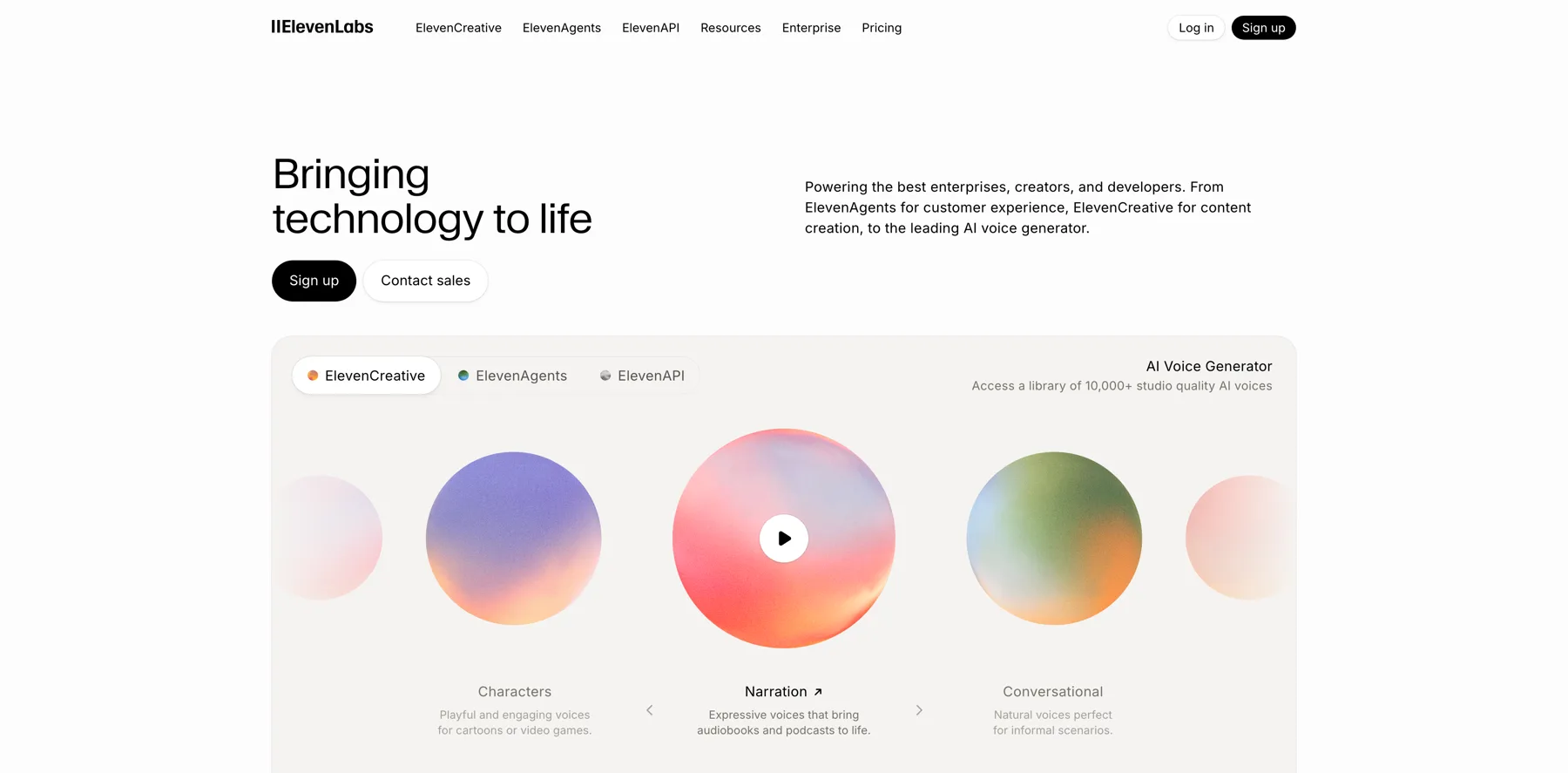
ElevenLabs is best in class when it comes to voice cloning, basically text to speech. It's really, really good for this kind of stuff. ElevenLabs and you can create unique voices and stuff like that in there. Senja is more for testimonial collection. It's not an AI tool per se, but they are having quite a few AI features now. So yeah, I put it also in the AI category more maybe on the business side what you would use. Claude is really good if you wanna do any form of writing or coding. Claude is great. I'm on their pro plan here. I used to be on their Max plan for a little bit because I did a lot of writing, but then when Notion came out more with their agent features and stuff like that, I downgraded Claude.
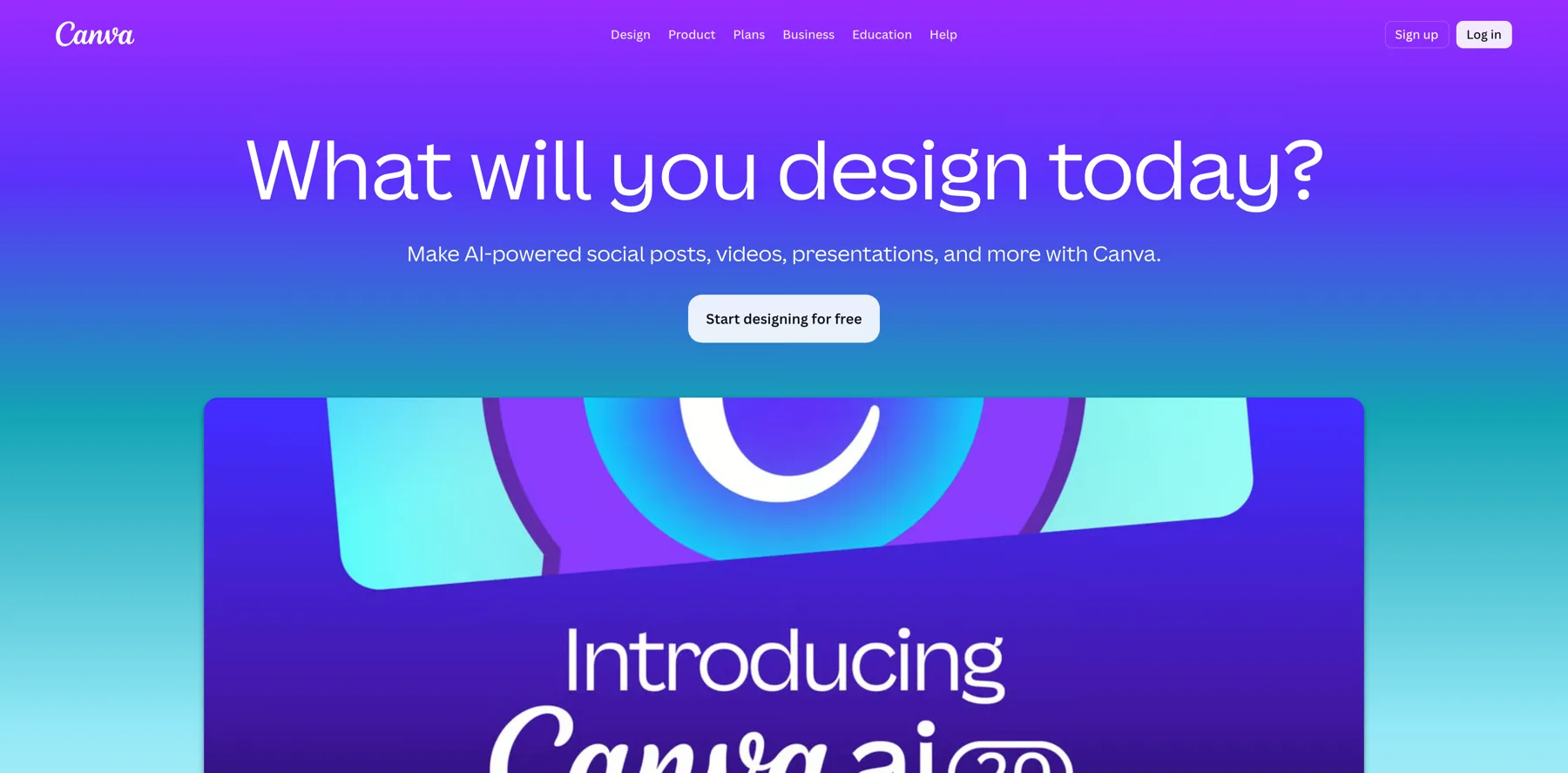
So I do recommend if you have the budget for it, Claude is great to kind of have a subscription there on their native platform. Canva, i've had a subscription with them for years. I pay like $15 a month or something. It's very affordable and you have a lot of AI features there. More like useful, like background removers and stuff like that.
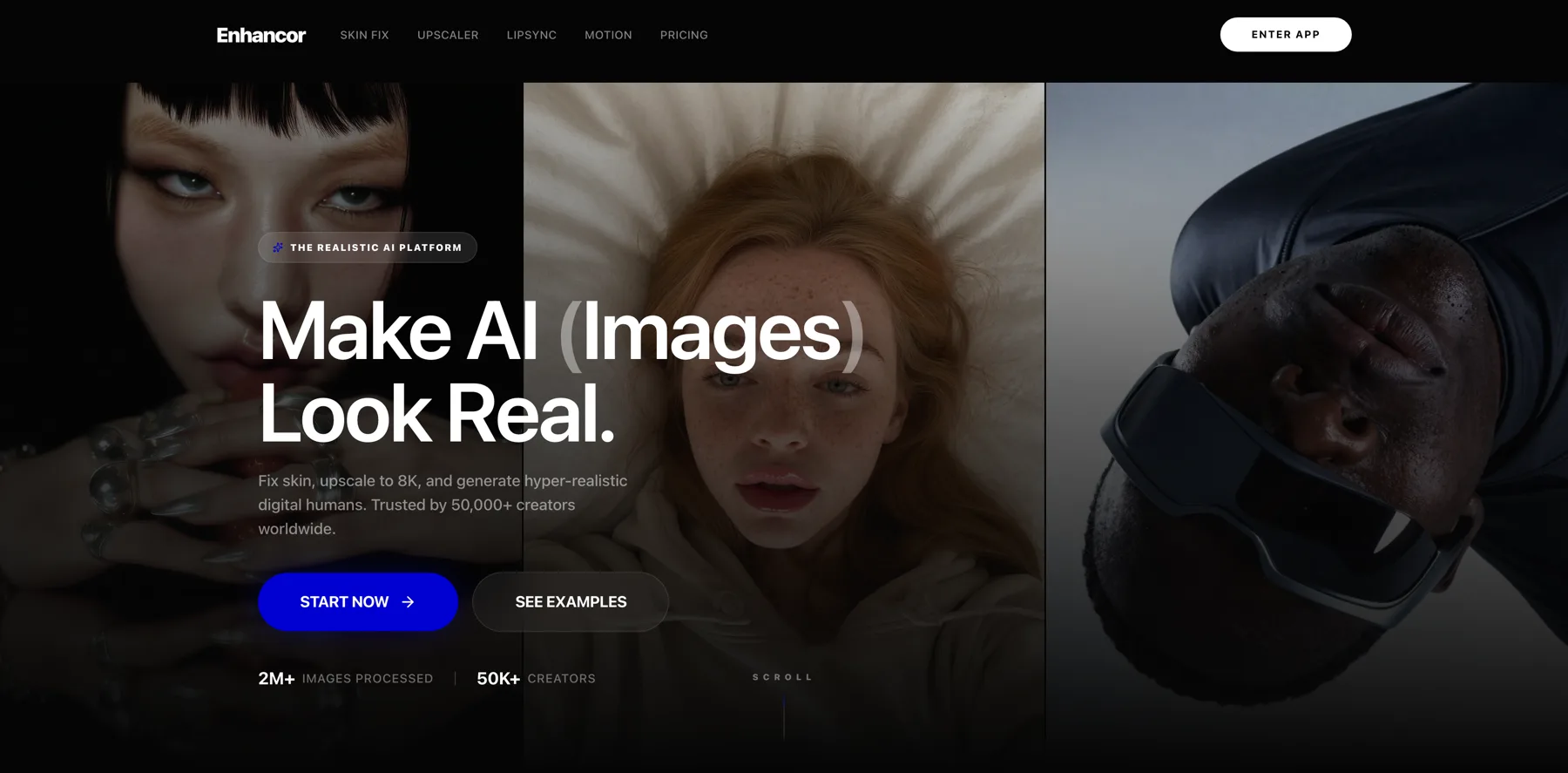
You can do that inside of Canva, but they have tons of AI features. They acquired Leonardo too, so they have that platform as well. That's separate, but we'll see what happens in the future if they're gonna add a lot of this stuff. Enhancor is another interesting one I pay for, and they changed the pricing quite a bit, but I think, uh, the plan I'm on now might cost like $45 a month.
They have also some lower plans, but they are really good when it comes to improving skin texture. When you generate an image with AI, it might come across a little bit plasticky. Enhancor can solve that and make sure it actually looks more real, this texture on the skin and stuff like that.
And then you can also upscale the image and make it look really good. So this is what they are known for. Adobe Creative Cloud I mean doesn't need an introduction, but it's uh, really, really good. I'm on the student plan here, so if you can get that somehow, it's definitely worth it.
I get like Adobe Firefly, Adobe Photoshop, all the different tools, included here. So I'm having a lot of fun with it because Adobe Photoshop has gotten like a revival too with their AI and Adobe Firefly is just really fun. And they have realized they are not gonna be the best when it comes to AI image generators because they are adding a lot of these tools in there.
Like Nano Banana is now available inside of Photoshop and the same in Adobe Firefly. So they have realized they're not gonna be the best with their own native model. They do have that, but it's actually not as good. So that is actually a good thing because they are, they have obviously the money to just scale things up if they want to.
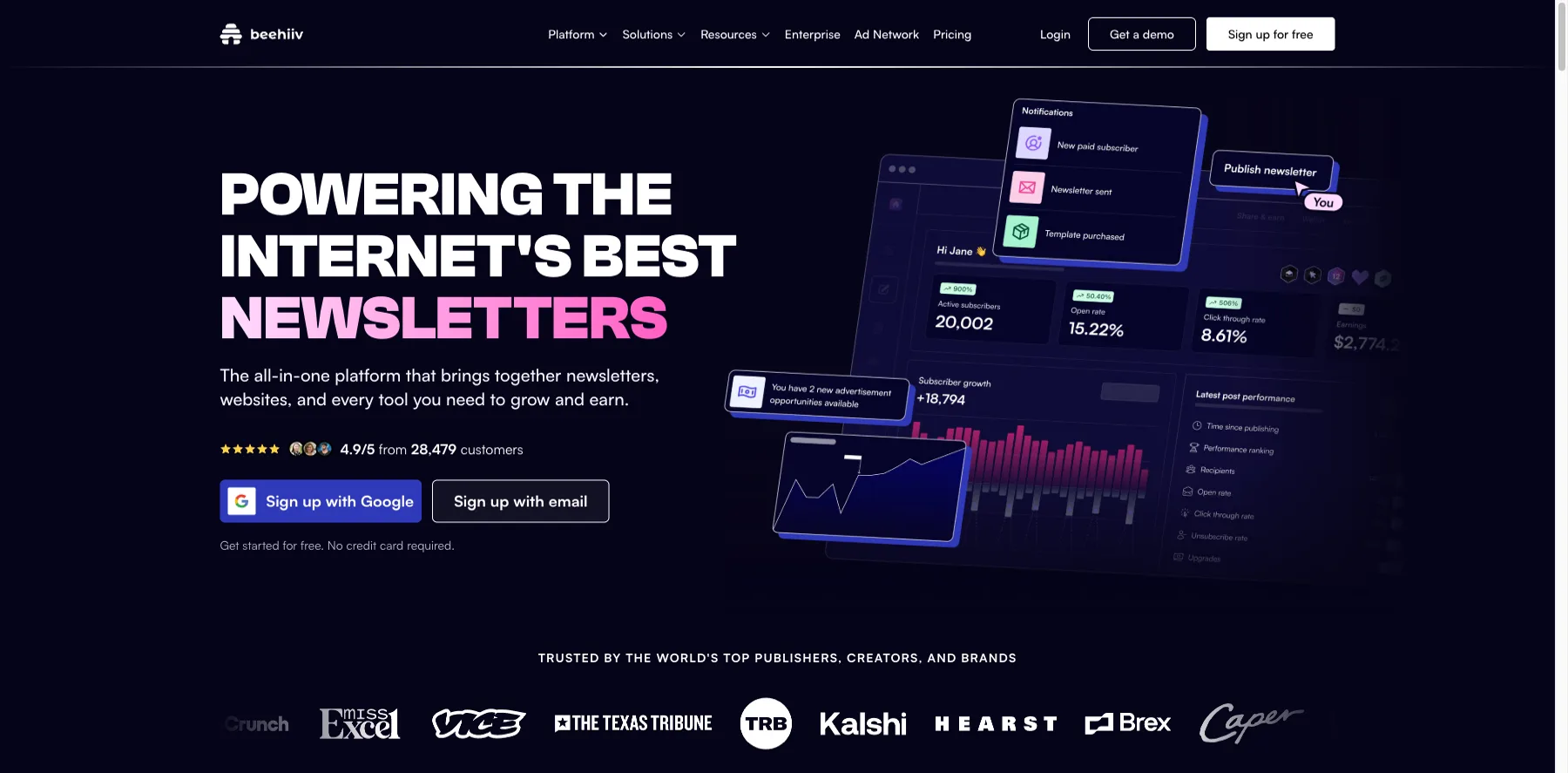
So it's good that they're actually, you know, including the best models in their tools. Kit is just for email marketing and Flodesk. If you really want email marketing tool or like a creator marketing platform that has more AI, I would recommend Beehiiv. They have a lot of different AI features. Even their website builder now has AI, so you can build some really cool stuff, even taking like a screenshot of a website and it can generate it very nice.
Runway is a really good AI video generator. I use that quite a bit. I will show you inside of that. Wispr Flow is like the ultimate AI productivity tool. You can speak to it and then, you can use that with any AI tools, basically voice to text. So it's really cool with all these apps, when you wanna do things quickly, you can use Wispr Flow and you'll see this little toggle here, and then you can just hold this to start dictating. So really, really nice. Notion, doesn't need an introduction. I've talked a lot about Notion. I use it a ton and if you are inside of AI Creator OS Pro, you actually have a deal inside of the Creator Deals Vault, so you can get six months free of the Notion Business Plan, at the time I'm recording this, it's still available. That's what I got for this one and it's worth at least a few hundred dollars, but up to 12,000 if you have a big team and stuff like that. So Notion really, really amazing. Definitely take advantage of this deal. It's not really available anywhere else, so you can get that for six months and it's worth quite a bit.
$24 a month if you're a solo creator, I believe that's what I will pay after my trial. Gamma is the best AI presentation tool. I use this a lot. I will show you insight and show you some presentations I've created. I don't necessarily use it just to get, you know, the slides automatically generated, but it, they have some nice features in there.
It's like, feels really modern and, and I like the way it works. So, Higgsfield is kind of similar to OpenArt and Freepik in a way, but little bit more creative. If you've seen a lot of these videos on social media, a lot of these viral videos, they're using Higgsfield, and they have a lot of templates and stuff like that.
So really cool tool to explore. Perplexity, I use that as well. And that's, uh, I'm on the PRO plan, but I got that via Ideal with PayPal. So in the notifications, I found this deal and I got one year free of Perplexity. So depending on when you're watching this, it may still be available so you can check out Perplexity as well.
And if you can get this deal, that's great. It's not available in all regions, unfortunately, but at least in the US it was available, when I got it a few months ago. All right, so Hostinger VPS, I use that with n8n, so not really AI related, but it's for the n8n setup, so I can self-host it.
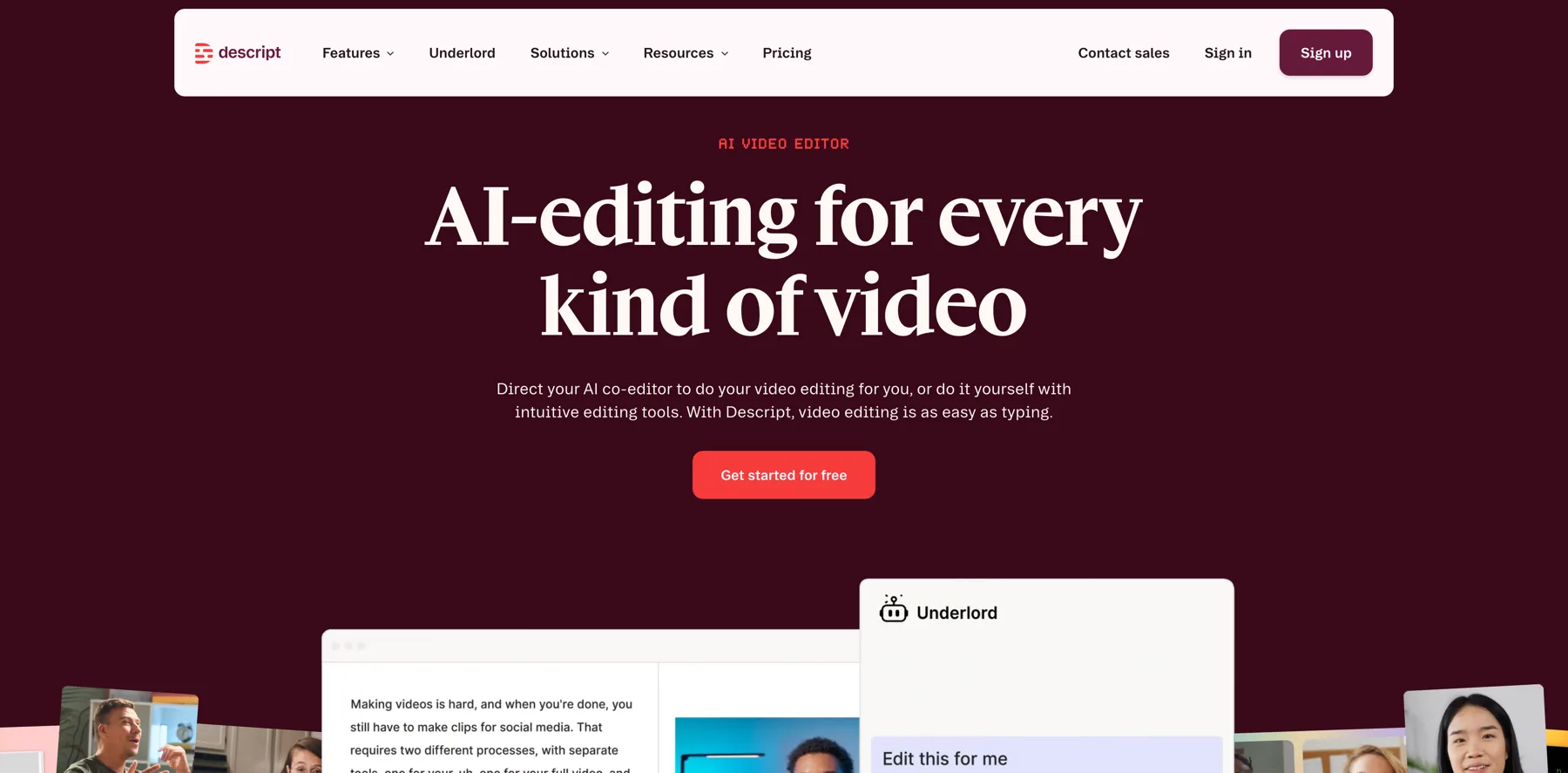
CapCut. I use that for a lot of video editing. They have tons of AI features. Suno is best in class when it comes to music generators. It's really, really good. It sounds pretty amazing. I create a lot of my music in Suno right now. And the Descript is great for any video editing.
When you wanna edit, like the text, for example, a session like this, I might drop into Descript and then I can edit it a lot faster and you just edit as a document basically. Riverside for podcasting, show notes and stuff like that. It's great. Poppy AI I use, recently I started using it.
They have a lifetime deal. It's like a canvas where you can drop in your YouTube channel and you can connect different sources together. I think it's really cool the way it works and they also have different AI models like Claude, ChatGPT, and stuff like that. So really useful. I might do a full demo and tutorial about Poppy and how I'm using it.
Opus Clip is for turning long form video into short form, and I use this quite a bit before. Now, I use more Descript because it has also some of these features, but I have some stuff inside of Opus Clip as well, so it's a really good tool and they have even their, video agent right now, so you can do some things automatically.
Voicenotes I use on my phone to capture ideas and things like that. It's really good. ElevenReader. You can listen to books. Basically you can upload a PDF to ElevenReader and you can listen to it. I will show you the full setup for these tools. Voicenotes, ElevenReader, Readwise and Snipd.
I use this a lot for learning. And, uh, I will actually show you this in a different session, kind of how these work together. And, uh, I use obviously Voicenotes as well on my phone to capture ideas and just when I'm on the go, it's great and, uh, you can do that there. But they work very beautifully together because Voicenotes can sync with Readwise and Readwise sync with Notion, and I can get it into a database like that.
I have a video about how to learn anything 10 x faster with AI. So definitely check out kind of how I'm using these different tools there. Playlist AI is just to get like different playlists with Spotify or whatever.
It's quite useful. It's pretty affordable as well. Recall is for knowledge management. I will show you inside this tool as well. It's pretty cool. It's pretty basic what it can do, but you can actually organize all your different YouTube videos and things like that. Any sources basically that you wanna learn from and then you can chat with this knowledge and even have quizzes and stuff like that.
So quite a useful tool. Pykaso is great for kind of AI influencers. I don't pay monthly for this. It's more like a credit based system, so I pay whenever I need it. I don't use that ton. Because I use other tools for this. Dream Face. I don't pay right now for it, but I think that's good for like lip syncing and some stuff like that. You can do that with Dream Face.
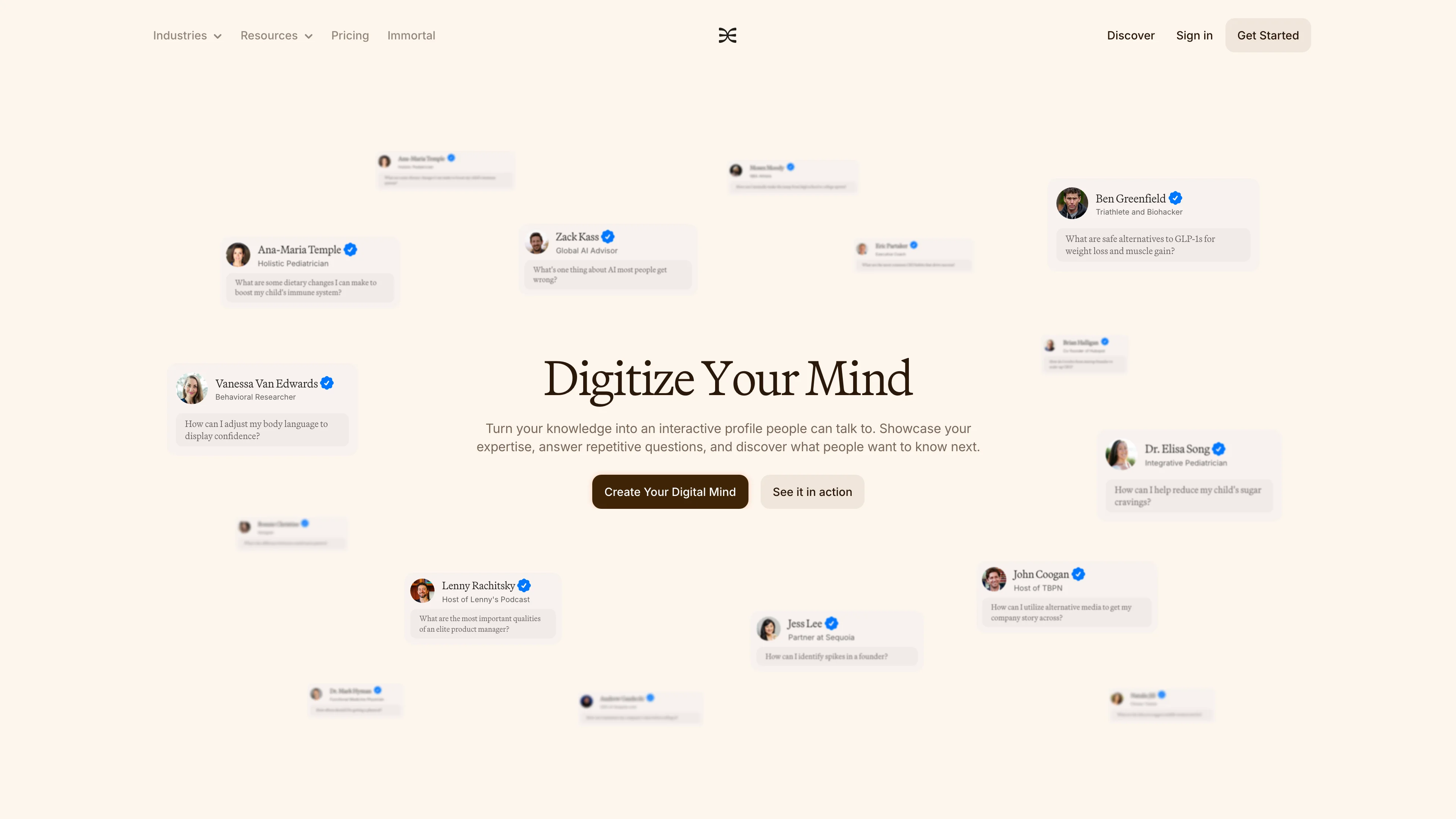
Delphi is pretty amazing for creating an AI avatar or AI clone of yourself, basically a digital self. It's really, really good. I will show you inside Delphi as well. And I even have a separate video of how to set all of this up. Skool is just for my, programs, membership, community and all this.
Vimeo, I pay for this because they have the best player. They do have AI features, but it's quite expensive, a little bit with Vimeo. But they do have the best video player in my opinion, that you can use because it's very user friendly. That's what I'm using here. Alright, so that's basically what I'm paying for.
So what do I recommend if I go back here? So what do I recommend, for you if you are starting from scratch? If you're starting out and you want to dabble with these tools, ChatGPT is a no-brainer. Just get started with ChatGPT. That's kind of the early stage budget, around $20 to $50 a month. You can get ChatGPT and possibly if you need Claude.
But they do a little bit of the same thing, although Claude is a better writer in my opinion. And you can get it to be a little bit higher quality. Or you can grab this trial for Notion as well. And then you get all the models included like Claude, ChatGPT and even Gemini. You can already see this here actually.
So you can see here you have different AI models here in Notion. And uh, yeah, so that's all in here. The only thing, they don't have the image generators and stuff like that in here. They don't have Nano Banana and stuff. It's only text-based. So you don't get all the features of these tools, but you do get the models included here with Notion.
But either way, if you are inside AI Creator OS Pro, you can grab the six months trial of Notion. So you don't have anything to lose to kind of check it out. We pay actually for this deals platform, so yeah, that's pretty hard to get. Otherwise, there is not like something Notion offers on their website.
So that's what I would recommend on the early stage, you pay for, you know, 20 to $50 a month. From 50 to a hundred dollars a month. If you go back here, I would probably add more of a creative tool as well. Maybe Freepik, so that one you can pay. That's like a yearly subscription. Um, depends. It might be a little bit higher price.
I'm trying to secure a deal for a Freepik, premium plus plan, because that's really how you get the most out of it. So I would probably choose something like that, possibly Midjourney to like really learn this tool because it's amazing. I'm gonna show you inside Midjourney and I think I would blow you away a little bit there.
Then if you go up a little bit from there, I think like HeyGen and ElevenLabs is what you should learn next, uh, because they are, you know, a lot of people are using it and you can get a lot out of using these tools and dabbling with these. Especially like with the voice cloning, it's really, really good if you can do a professional clone, the instant clones are not really that great. Okay? So you wanna do a professional clone, and for that you need at least a Creator plan. Um, so yeah, Canva, you might already have, but that's kind of the segment. So 20 to $50 a month, you can pick like a ChatGPT, and maybe one or two other tools.
And then from 50 to $200 a month, you can kind of see what you need in your business. Do an audit of the tasks that you're already doing in your business. All right? That's what you wanna do. And then you can figure out, okay, here's what I need, here's what I don't need, and you can see what you want to use.
Wispr Flow saves a lot of time. It's not really a fancy tool, but it's really a cool way of using it. I can use it here. You know, I can just click here to dictate anything I want. And even if I'm doing a session like this, I don't need to stretch myself to my screen. I can just hold dictate and I can actually use that with different AI tools to get my prompts or the, you know, speak to the AI.
So that's what I would recommend. And then $200 an up, again, depends what your needs are, but you can see a little bit here what I'm paying. I'm paying like now a little over a thousand dollars a month. Not all AI tools, but the majority of these tools, I would say they are kind of AI related in some way here.
And, uh, yeah, like Google AI Ultra, I mean if you want all Google's tools, that's great. Uh, probably not the first one I would pick, but, 'cause you can get access to Veo 3 and things like that inside of Freepik and OpenArt and some of the other tools. Uh, so yeah, this is kind of a little bit what I would recommend.
You know, if you have any questions on this as well and you're inside AI Creator OS or you wanna send me an email about it, let me know. I can give you specific recommendations for your needs. I have done tons of research here, so I know quite a lot of tools, but let's, uh, look at this here. So, core AI assistants, that's kind of the first thing.
So I've covered this before, but, these are kind of some, LLM or AI chatbots. Notion, Poppy, Claude, ChatGPT, Perplexity, Gemini, even AI Studio from Google. Pretty powerful. Check this out as well. Uh, you can do some really cool stuff and build tools inside of there. So that's a pretty nice one you might not have heard of or might not use.
Manus. It's an AI tool from China. Really, really good. And, Google Notebook LM is great for learning. And then we have Grok, I don't use Grok a ton, but it's great with X, or Twitter. OpenRouter. That's kind of, if you want to use that with n8n and things like that, and you can connect many different models, then OpenRouter is great.
Mitch Aser uses this a lot. He showed that in one of his sessions. RightBlogger by Ryan Robinson is great. If you're doing any form of blogging or wanna turn, let's say, a long form video like this one into a blog post, RightBlogger can do this pretty easily. All right. So, let me show you a little bit here.
I'm not gonna get into a lot of these tools, but ChatGPT, I mean, we covered this quite a bit, but I use it almost daily. They also have now Atlas, which is their, browser. So I think it's cool. It's like a Chrome wrapper basically. But, Perplexity also has a similar one called Comet. So Atlas is great.
So I use this a bit. I, they just came out with this recently. And then here I use a lot of the projects features. I mean, I use, GPTs for a lot of use cases in my business as well. Even though I use Notion, I still use, uh, some of the native features inside of ChatGPT. And if you remember from my earlier sessions, the most important thing is to set up the AI tools correctly.
So you set it up inside of your settings. And if I go Claude, I use this a lot as well. I use this with projects. Uh, so this is like Claude. I mostly use it with projects. I think that's one of their best features. Um, so for example here, Instagram carousel generators, I just put this in here. I have showed this before.
I'm not gonna get into this too much. And then Gemini, I think Gemini is great to connect with other apps, for example, inside of your Google ecosystem. I think that's what it's really good for. And then if you wanna dabble a little bit with, uh, your image generating here, you can do that to create images with Nano Banana.
I mean this is something I used before. I think, you can do a lot of different things. I'm not gonna show you this too much right now. I prefer to use Nana Banana inside of other tools like Freepik because you don't, first of all, you don't get this watermark and then it's higher quality. I feel the quality when you do it directly inside of Gemini is not always the best.
I don't even use the video stuff here. I think you can, like you can see here, you can generate video with Veo 3. I prefer using this in Flow. You get so many more options in Google Flow, so it's much better. So I mainly use it to connect to my workspace and things like that, Gemini.
Then we have Perplexity. I've showed you this quite a bit for deep research is great. Like for the Labs feature, you can also do that. And they have spaces, which is like the projects feature inside of ChatGPT and Claude, also pretty useful. But another feature that you might not use too much is the tasks feature.
Um, so you can actually create a task like this. All right, so yeah, so I can get an email every day in the morning here as you see. And I want to have, uh, you know, a little bit of an update on the best AI tools and stuff like that. And it sends it to my inbox. This is how this would work. And you can also select the model.
So I just said the best model here, source is web. You can also send mode. So I have it on the basic here. Probably I should have put the research mode here so then it will do a little bit better job with it. Uh, but that's kind of how this works.
Lemme go back to Notion, lemme show you this a little bit too.
So Notion I have showed quite a lot, but the main thing in Notion is that I use it like this. You can do at mentions here. Uh, as you see, you can, this is one of my favorite features. You can like tag anything. So my brand os whatever you wanna do. But they have like these uh, pages that's like the identity for your Notion AI. So I call mine Creator Agent OS. I also have an add-on for AI Creator OS for this. So you get a lot of this and I'm building out a lot of these mini agents, they're kind of like GPTs. They're not autonomous, meaning they don't do the work for you while you are sleeping or something like that. You have to be there to chat so that's also agents.
Like for example, when you are using a lot of these tools, even like in this Descript with their Underlord feature and even HeyGen, you have to be there. It's not like they're executing the task for you, but it's also called agents. So it's not an autonomous agent, but it's an agent, nonetheless.
So that's what this is. So you can get Notion to execute this like by, you know, mentioning that you want to use this kind of agent. That's kind of how this is supposed to work and that's how I figured this out. And Notion is my most useful tool. I use it for my content system and everything as well as you see here. This is my AI Content OS, I use it for everything. Notion is like the brain in my business. I couldn't really live without it at this point. And just a few short years ago, I was like a new bi. I thought Notion was really overwhelming. Then I decided to teach myself Notion. And yeah, here we are.
I'm pretty advanced with Notion at this point. Uh, so yeah, anyone can learn this. Alright, let's keep going here. So these are some of the core assistant, actually one that I wanna mention that is pretty cool and you might not have used a lot is Manus. Let me show you this one. This one is pretty cool, is the one from China.
This model, uh, don't worry, it's been pretty secure for me. It's pretty good. But let me show you an example of what I did. So I just wanted to create a resource about Midjourney here because I had like a PDF. So if you look at this, uh. Look at this here. So I just said, can you please create a visual resource based on this?
I just uploaded a PDF here, and then it worked and worked. I think Manus is really good at working continuously. They don't stop. I mean, like Claude for example, stops and ChatGPT as well sometimes, but, uh, yeah Manus just keeps working. I don't know how long this took, but it took probably a little while, and then it came out with this one.
If I had a better prompt, it would've done it a lot more in the style I wanted, but like, without any prompting, it did this, so it created this kind of interactive resource, which is kind of nice. I mean, I I still use Notion for a lot of this stuff, but I just want to demonstrate what you can do.
So Midjourney photorealistic guide. I mean, from just one simple prompt to do this. There's a few bugs here. I personally, I don't like the scrolling here, there's like two things. So I would've just gone back and forth a little bit. I'm not on the paid plan at the moment with Manus, so I didn't have too much, you know, back and forth to do.
So, I mean, I ran out of the limits basically here, so, but it's still pretty useful. Like you can do things like that. It was like just one simple prompt and if you give it some more instructions, you can do even better, I think. So that's little bit of the AI assistants. So lemme go back here and keep going.
So I showed you a Notion as well, AI systems that also notion is great for the writing and workspace. Um, I would say RightBlogger too. Lemme see if I can find Right Blogger if I have it here. Uh, yeah, so I have RightBlogger. Lemme just show you that quickly. I'm not gonna get into this tool because, uh, Ryan Robinson showed you this really in depth in his session, uh, on how to take one longer video, like something like this or a YouTube video and turn that into a blog post.
I mean, that's one of the most useful features. You just, uh, drop the link in there and then it can do the job for you. And then you might just wanna edit it to make it sound like you. I use this kind of way with my Notion set up as well because I can then have a template and make it look exactly like the way I want, a little bit quicker than in RightBlogger, which you don't really have that flexibility. You can give some notes to it, but you cannot do as much. So it's gonna like do the work and then yeah, it will come out with something and then you have to edit it. But it's still really, really useful. It's very, very fast. I really enjoy this tool and you can do some really cool stuff in here.
Uh, let me just refresh this. I'm not sure what's going on here. Um, but uh, here you see they have you in a free plan so you can get started, uh, with this. But I would say start with the Light plan or the Pro. I've always been on the pro plan and, uh, yeah, I didn't use it as much recently, so I might not have a subscription at the moment, but I really like it because they have like some tools you can create, you can create lead magnets and stuff like that.
They have a ton of different tools built into RightBlogger. So if you are a writer, I think you'll feel right at home inside of this tool. Uh, especially like with blogging or anything you do, but they have a lot of features for social media and turning like long form content into X posts and stuff like that.
So quite useful. I do recommend this one if you're interested to check it out, but now let's get into some of my more, I guess, favorite ones. I just wanna show you this first also. The writing tools here. So HubSpot AI Email Writer is quite a good one. Grammarly is more for, yeah, the grammar and stuff like that.
They have, uh, AI features of course. So Claude and Notion probably my favorites in terms of writing. Then, RightBlogger is more specific. ChatGPT you can do as well if you have it. If you have trained it in your voice and all of that, you can get ChatGPT to sound pretty good as well, especially if you have GPTs or projects.
But now let's get into the visual tools a little bit. The images, I think that's what excites me a lot. Um, so Midjourney, Freepik, OpenArt, Enhancor, Higgsfield. There's quite a few of them as you see Mixboard by Google. Really, really cool because you can do some interesting things there. I might be able to show this.
Dreamina is by CapCut. Whisk is also Google one. So you see there's quite a lot of them. Um, for example, if you don't wanna have subscriptions, Fal.ai is great or Replicate, then you can use any model. You just that, top up with credits. So maybe $10, $20 and that lasts you quite a while actually, if you wanna create images of yourself or something like that. You can do that inside of Fal.ai and Replicate. You can do that there. But I prefer the other tools like Freepik and OpenArt and, you know, Midjourney and these things. You get a better user interface and it doesn't feel as developer heavy, you know?
And also Midjourney, you can't even access in other tools. In Fal.ai and Replicate you can access any tools that got an API basically, and they have integrated that there. But what I wanna do now, I'm gonna see here which tools I'm gonna show. Probably a few of them. I will show inside, okay?
So I will show Midjourney now. I think that is a tool I'm using a ton. I love Midjourney. It's my favorite AI image generator.
Okay. Here we have Midjourney. This is what you see when you log in. Before they were only on Discord, but now it's actually pretty user friendly. It's still a learning curve, but Midjourney is, uh, really amazing. They have this beautiful interface. You have a dark and light mode. You have this sidebar here, and, uh, here is where you imagine, here's the prompt. And you can see how it works. You can upload things. You have image prompt, style references, omni reference. Omni is more for, if you want to create a version of yourself or anything like that, you can do that in Midjourney. It's a little bit more tricky than some other tools because uh, yeah, they don't have character consistency exactly. They omni reference is supposed to be like that, but it's still a little bit experimental. So, yeah. But still is really powerful. And you can see here, now with, you don't really need to use as many parameters and stuff like that. You can use it afterwards. And I do that, uh, as well. But you see here, you can already use all of that.
Um, I think four by five is not available here. So then you need to use a parameter afterwards. And if I'm moving fast through Midjourney now, don't worry. I will actually do a full deep dive on this. At least I'm gonna do it for AI Creator OS Pro students. Uh, like I have so much knowledge in Midjourney over the past couple of months. I have used it a lot and, uh, really mastered it quite a bit. You can see here some other things like stylization. Uh, it's pretty good. So you can, you know, uh, drag it up or down. I usually keep it around 100. Sometimes I use it a little bit higher, but this is more to experiment with. Weirdness. I don't really use at all variety or chaos. I usually put this to zero or 5 to 10.
That's usually what I do. If you want really a lot of variety, you can do that. I can usually keep this. If you want to have higher resolution video, you can do that with hd. It's not available on all plants though, so keep that in mind. This is the version, Midjourney is currently at the time, I'm recording this one on 7.
And here you have kind of the mode. Standard is more kind of the Midjourney as, uh, aesthetic and uh, that's great. If you want this kind of Midjourney filter on top, uh, I use raw most of the time, but standard can come in handy at times, but mostly I use it on raw and here I just put the aspect ratio and uh, here I put, yeah, I just keep it like that. So that's a little bit in Midjourney. And the personalization tab is pretty powerful too because when you log into Midjourney the first time you usually wanna do this. You just go through here, you pick the image you like, I'm not sure.
What is this? I mean, just put this like, okay, I like this. Uh, I like this one. Uh, I like, see, I like this one. I like this one. So I'm trying to make, this profile is more my photorealistic one, so I don't really want too much of, you know, too artistic stuff. So you can actually create different profiles here, but go through this and do about 200 plus, then you will get access to this and you will see it up here, and then you can use that and then you train Midjourney on basically what you like and things like that.
That's what this is for, essentially. And, uh, you have your moodboards here. So let me show you on the create tab a little bit what I have done in Midjourney so you can get inspired. Uh, so this was pretty cool. I mean, just look at this hair here. I mean, uh, so I think this one, actually, this one looks pretty good.
I would say for Midjourney. This, uh, I, this is the prompt. You can see it here. You can screenshot if you want, but this is because I describe myself here. If you wanted to do this for yourself, it would not turn out good. You have to see here it says about me here. Right? So kind of it describes my look.
Okay. So that is what it does and what you do when you do this kind of things. Let me go back here. Lemme see if it has this. Uh, so not all actually are perfect either. So if I go back here, uh, this is some of my images, but, uh, yeah, I've done, I've done a lot of them. Like if I can go down here, you can see how many I have generated.
And, uh, the prompts I use are quite, uh, in depth. Let's say I wanted to use this for myself. You drag this usually into the omni reference, and then here you would set an omni strength. And it's kind of counterintuitive because you might imagine, okay, this is gonna be the best, uh, you know, likeness of me here, but it's actually not always true.
So I find usually between 100 to 250, 300 works the best. But you have to try this out for yourself to see what works the best, to be honest. Um, this is more experimental. It's not always accurate. You can see here even, lemme see if I can remove this. Um, I remove this prompt for now. I don't, it's, it's okay.
Here you can see these, they're actually pretty, pretty nice. Some of them. See some of them doesn't even look like me. But I mean, they're close, but they're not, it's not me. You can, I mean, you can tell some of them are pretty good. Uh, I think. For example, this one is decent. I think this one is pretty, pretty good.
Uh, there's like a North Face campaign I generated, so I put like, look at this prompt. It's very, very detailed. Uh, so yeah, you want, you can go, you can go nuts with the prompts here. And I actually use ChatGPT lot to generate these prompts for Midjourney or any image platform or whatever. Or even when I use AI video tools, I use ChatGPT. I sometimes create a GPT on this.
I have actually a Visual GPT that can spit out some of these prompts, you know, really, really quickly and I can get what I need. So yeah, that is that. Let me remove this. It's a little bit annoying with, uh, how it works here, but, okay. Like when you have stuff here, you just, okay, lemme see. Let me remove that too.
All right, so now I can see it better. So you can see here, for example, I have a lot of different things. I'm gonna go into ChatGPT to actually show you. I cannot demo Midjourney and everything. So in. In this session here completely, of course, but you can see here... I am this, there's a lot of different tokens as they call it in Midjourney, this is tokens, like cinematic shots, you know, and, uh, you see minimalistic, I'm talking about different things, even the camera sometimes. You need to give it as much detail as possible, alright?
And I think that is one of the things I like the most in Midjourney. And you can see here also some of the parameters like, uh, aspect ratio 9 by 16, style raw and stuff like that. Um, so I have also moodboards inside of Midjourney, and so I use this with moodboard scheme. Actually, this one is pretty cool, right?
Uh, this one is pretty cool. So I can, I, you can read it here. I'm not gonna read all of this. It's quite long, but, uh, I use this with a moodboard, but let's, let me try this without a moodboard. So now, before I used the Skims one and let's go inside here to show you what some of my moodboards look like.
I think that is one of the most powerful features inside of Midjourney that you simply can't get from other tools. Um, so I have a few different ones here. You see, I've created like even some for cars and Creator School and stuff like that. Hugo Boss campaign. I did some stuff like that here. But Skims is, uh, you know, Kim Kardashian's brand, but I wanted to try to see if I could, um, you know, generate something similar because it's very unique.
Look, I would say, I mean, distinctive, at least. Uh, so, and also Midjourney. It's some, it's sometimes a little bit challenging because they have a lot of restrictions. So maybe some of these are on the fine line. It's not like vulgar or anything like that, but you can't use like nude in inside of a prompt.
Like even for the lips, like nude color, you need to use it in a different way. There's also some new nuances with Midjourney. You have to be a little bit careful how you use certain things, otherwise you'll have to prompt it again, essentially. So all of these images you see here, I actually generated them inside of Midjourney.
They're not something I just added. You can add images from the, from, you know, the website and you know, from Google, whatever. You can do that too. But, I just generated all of these inside of Midjourney myself and most of them turned out pretty epic. These are like product shots here, as you see. So, yeah, you can see it a lot. I mean the, it's a very similar aesthetic, right? All of them look pretty much the same in terms of the color scheme and stuff like that. And this can be used for anything. Like, if you want a specific color, maybe for your brand, you can create a moodboard for this.
And then you can create something like this. I mean, look at the skin here. Look at the skin, the details. Look at this. Look at this. You cannot tell that this is AI generated. It's very hard to do. Uh, I'm not sure what is this here, but, okay. Uh, yeah. So this is pretty cool. So I use this quite a bit like, I mean this was more of an experiment, but turned out pretty awesome, I would say. I mean, I don't know what you think. You can let me know. Uh uh So let's, let's try this prompt here. So I go in here and then you see this prompt. I'm just gonna try it. It was for this one here. You can see that I use the moodboard Skims.
All right. But I'm not gonna use this now to just show you the difference. Okay. So I'm gonna put this in nine by 16. You can change the aspect ratio here, and the other is hit generate. Okay. And then it will come up here. So I'll just go back to the top. So it'll take a few seconds. Usually like up to 30 seconds or so if you're on one of their plants.
And you'll see this gonna look completely different. Okay. That is what's interesting here. Like the moodboard can change the look completely. You see that this is not even close to the other one. It's a completely different image with the same prompt. But let's do this now with the Skims. I mean, I can use clay too.
It's kind of similar, but let's use skims, uh, for this one. Or even clay. Lemme try clay here because I didn't use that in the other one. Let's just use clay, which is kind of a similar aesthetic. Um, and then you'll see what happens here.
And then I'm gonna move on to, because we have a lot of things to cover in this session, but I'm just gonna show you also in a moment how to recreate things in ChatGPT if you want similar styles, so that, that could be useful actually for you to see. Um, but yeah, you're gonna see here that it looks completely different again.
So I think this demonstrate a little bit the power of Midjourney that you probably cannot get with other tools as easily. I mean, you see this is completely different, right? Like just with one moodboard you can change the look completely like this. Pretty incredible. So let me do this. Let me just copy this, prompt and I'm gonna go into ChatGPT and I'm gonna start a new chat here.
So I'm gonna say to ChatGPT, uh, I'm just gonna paste this in here and then I'm gonna do this and I'm gonna start with Wispr Flow to just tell it what to do, right? So I'm gonna start dictating here. All right. I just pasted a prompt from Midjourney. I want you to analyze this prompt and the style and the detail of this prompt and create similar ones, uh, that I can use for Midjourney, uh, and have some variation as well.
But you see the detail of it. You can use camera, you can use different things inside the prompts to make it really powerful and stand out, and then it's gonna be a better image as well coming out from Midjourney. And keep in mind, you don't need to use all the parameters. Midjourney has now web version and they are in version 7.
So you don't need to mention all of that. More about the aspect ratio. I use a lot of 9 by 16 and, uh, 16 by 9 and things like that, and 4 by 5 for social media posts and stuff like that. So please use that and come back with a series of prompts I can use maybe in different styles.
Like really push yourself here to make this really useful for me.
Alright. As you can see here, I mean I just basically talk to it. Uh, I, there are some, GPTs for Midjourney as well. I don't find them always working the best to be honest. So here you're gonna see, uh, I mean it doesn't do the aspect ratio, correct? I'm gonna, I'm gonna tell it to do that correctly.
This is not the correct parameter, how you actually do it in Midjourney. Uh, all right, so I'll have to stop you here for a second. You are not using the parameter correctly, like the AR stuff. You don't, first of all, you don't need to use capital and also you need to use it correctly. So please research how Midjourney parameters work, and then come back to me with this.
I could teach you on doing this, but I wanna demonstrate this now to my students. So you will know how to do this. You have done it well before, so you're probably aware how this works.
Okay? So this is how you can use Wispr Flow as well with the ChatGPT, uh, very easy. And now it's searching because it actually did this parameter thing wrong, usually have two. You see here, usually have two lines here. I mean, it's, it's gonna show it, it realized its mistake, uh, which is good. We could demonstrate this here.
And then it's gonna do it right now. See? Yeah, now it's getting it, I think. I think so. Yeah. Yeah. So now it's getting it. This is how you do the parameters, basically. Two, two lines like this and then ar or whatever. They have different ones. I'm not gonna get into all the parameters here. I have a full guide and inside of AI Creator OS I will give away all these guide.
I have prompts for Midjourney and stuff like that. But let's just try this, for example, uh, inside of Midjourney, lemme see where we have Midjourney now, uh, here. And then I'll just try a different prompt for this example. And now we have a different aspect ratio. I could put it here. I could here actually 4 by 5 doesn't work here.
So that's, uh, that's good. And then we'll use this first without the moodboard, and then we can do it afterwards. I just wanna see what come, what comes out, if this is gonna be something good, but you can, you can create any prompts you want in this form. But again, I'm going to have a GPT that can do this for you, so it's gonna be even more powerful inside of AI Creator OS Pro.
So I'm gonna have a Visual GPT. So again, just use that one instead of like thinking a lot about these things, it's already trained on all my different documents in Notion and stuff like that that I have about Midjourney. So you can see here it did something kind of similar. And then I can try different looks like let's do with the Skims one and then, uh, yeah, let's try that.
And then, uh, probably the aspect ratio. So you can click here actually on these ones. So that's pretty cool. So you can click here, so then you get the same. And then you have, uh, the, I put a Skims moodboard here. All right, so let's just try this one quickly and then, uh, we'll move on. So this is what you can do.
I'm gonna show you some other image generators and visual tools like Freepik, OpenArt, Enhancor too. So I have to move pretty quickly, but I wanna also show the details what you can do. I mean, come on, this looks completely different. I mean, it's not even close. It's like a different look completely with the same prompt.
So there you go. You can see how powerful this can be. And also you can add into, uh, Midjourney, like you can see this, like the detail, like, uh, let's see if I can sum this in. Uh, you can even add more skin texture and stuff like that with Enhancor if you want. Uh, or you can mention to ChatGPT to kind of, you know, mention that it should have some imperfections and stuff like that.
But you see the prompt here is still pretty good. What I could also do is to say, like, if I wanted to have it on a different camera, I can mention this, but you see here is an iPhone portrait. So that's probably why it looks like that. It's pretty realistic in terms of what it can look like. Um, and this is pretty good.
I would, I mean, the only thing I would do is to probably make the skin a little bit better on this one. So that's one thing I would probably fix. But some of them, they do have really good ones. When you're doing very closeup, I mean, this, this is a pretty awesome image to be honest. Uh, yeah. So this is what you can do.
Hopefully you enjoyed some of this. I will do complete deep dives into Midjourney. It's like my favorite tool. I play with this all the time and actually I use it for a lot of my base images. If I wanted to create an AI influencer, I might start inside a Midjourney, create the first look, and then I might go into a tool like Freepik, use Nano Banana or some of their other models and create different looks of that person.
So I create really the stunning photo inside of Midjourney, the first base image, and then I go into these other tools. Could I do that in Midjourney as well? Yes. But sometimes the omni reference feature is not a hundred percent. I will dive deeper into that in a separate video inside of AI Creator OS because there's a lot to cover and this one will simply be too long if I covered everything here.
So that's Midjourney. You can do so much with this tool, it's amazing. But let's go into Freepik, like kind of this all in one AI creative suite. So lemme see. I think I have this here. Uh, yeah, so let me show you. Lemme go back as well. Let see if I can go back. Uh, alright, so this is the homepage of Freepik.
I mean, they have so many different tools, so I can't go into all of them right now, but I just wanted to show you insight. So what I use the most is really the image generator, video generator. I use the assistant quite a bit. You can do some cool things here. And they have lip sync feature, they have image upscale or image editor.
I mean so many tools. So this one I highly recommend the premium plus plan of Freepik. Can't go wrong with it. And you get all the stock library with the icons and all of this, uh, which could be useful in your business for your websites. So really a good deal here. Uh, but lemme go to the image generator.
So I show you a little bit here. So this stuff is like stuff I have generated inside of Freepik. You can see like some podcast things. These were actually based on, lemme see how I created this here. So you can see here I have a reference image, and then I have, uh, the Alexander McQueen's shoes that I put here as a reference.
And then I have, uh, reference three. This was used with, uh, this was done with nano banana. You can also do stuff like that with Seedream 4K, which is really like high quality images. You can play around with both of them. And before, uh, kind of these models came out, you can see the full prompt, very, very detailed editorial, cinematic portrait, blah, blah, blah.
So you can actually tag a lot of this stuff in here inside of Freepik. So you can do that. I will also do complete deep dives into Freepik for AI Creator OS Pro students. I might even have a separate session here from these workshops where I give a little bit of deep dive into these AI creative tools and how to use it.
Um, but you can see here, you can upscale it, you can create a video from this directly. Um, yeah, you can recreate it here. If I put recreate, uh, lemme see what happens. Yeah, so you see it here. So this is this is what it looks like inside of Freepik. And then you can pick your model here. They have tons available.
I use Nano Banana a lot. I use Seedream. Flux has some good ones. I don't really use a lot of these other ones too much, to be honest. Mostly like Seedream 4K, and uh, Google, Nano Banana. These other ones I don't touch too much to be honest. And that's it. And then you can actually use a character here if you wanted to, but I feel now with the character consistency and stuff like that inside of Nano Banana and, you know, See Dream, they can use a reference image is not as needed, like to do that.
I have characters here, these two are mine. So I trained a character. You can do that here. And, uh, this is, uh, really good. You can just put some of your images here, make sure they, they're clear, make sure they have good lighting and you can upload. 15 to 30 images, I would recommend probably like 20 to 30 at least.
And that works really well. And then you can enter your name, gender, and then you're good to go. But I haven't found that I need this as much anymore because of these features that they have, like you, and you can have a reference image basically. So, but you can still do it here.
And I think that's, uh, good to try different things inside of these tools. And then you have like, I mean, you can see here the prompts are pretty in depth. Uh, I cannot even open this, but yeah, so I might give a deep dive on all this stuff. Uh, but again, you can go into, ChatGPT and generate things like that.
I mean, this, this I did based on a prompt from ChatGPT. And I just make it, I just give it as much detail as I can here. Like that is the key. Um, and, uh, I think all of them are. I did quite a few of them. Most many of them look quite good. But you see here, I, I wanted like a Shure mic here. I probably didn't give.
Yeah. As you can see here, I didn't give a reference of this. And for this, I use Seedream 4K, but I look good here obviously I look, uh, you know, very consistent. This looks like me, I would say. And the shoes look very good because I uploaded them, but I didn't upload the microphone, so then it didn't do that.
Even though I probably said I should use a Shure mic here, like, I'm pretty sure. Yeah. So I said I wanna have a Shure mic, but it doesn't do it because probably it's not trained on that, the model. So yeah, I had to upload a reference of what the mic looks like, and then I can get it to showcase this.
Okay. Then it's more realistic too. If you wanna turn this into a video, for example. I mean, then it's more realistic because it actually looks like a real mic, not like this fake mic. You know that I've seen a lot of AI influencer, like they, they hold like a DJI mic, but it's not a real DJI mic. It's like a weird shape of it.
But if you're uploading as a reference, it should do a pretty good job of capturing this when you put in your prompt here. So that is a little bit about Freepik. Uh, I like that they also have the video generators. They have a lot of different models. Oh my god, they have quite a lot here. And I didn't realize this would pop up like this.
Okay. But, uh, you have Runway, you have Veo 3, you have all this, they have the newest model too. You have a Kling. I think 2 . should be like the latest model might not be. Yeah. So here are the most popular ones. So Kling 2.5 is the latest model for Kling here. So you can see that some of the most popular ones are up top.
So you can just experiment with this. I'm not gonna get in too much to this right now in terms of like video generation here, but you can, you can play with this. You can even have a start and end image and all of that depending on the model you choose. It's not for all models. For example, Kling 2.5, can't have a start and end frame at the time I'm recording this. Maybe that's gonna change 'cause it's quite useful. So you have to use an older model of Kling in that case. So the assistant, let me see here. You can do some different workflows here. Uh, lemme see if I've done this before. Uh, let me see here. Yeah, you can actually see there, there's a lot of different things here with the workflows.
I think I did this for one of my AI influencers, Ayana Mira. I think I did that one time. But I will show that in a different session as well. And then we have, uh, lip sync imi image upscale. This is pretty much my settings for Magnific I use, lemme see if I put one, uh, I guess I need to put, uh, I need to say that I want to, let's say I wanna upscale this one.
Uh, edit. You can edit image, you can create this. These are probably upscaled already. So I have to go, let's say I go into the image here. So I, I wanna upscale this one. Let's say I like, lemme say I like this one. Then I click here. Okay? Then it takes it into upscaler. And, uh, then I can choose a preset.
Uh, lemme see. This is probably my new upscaling preset for this type of photos. So I use this pretty much, uh, you don't necessarily need this prompt here, but okay, I have the prompt there. Now. I mean, I think you auto-populated and then you have these settings. That's kind of what I use. Uh, and then portrait soft..
You have different ones here for different use cases. And I put us a, I put 2x. It obviously costs more the larger the image is, or more credits. This actually cost credits here is 80 credits, but it depends on the size of your image here. All right, so that's a little bit about Freepik. I highly recommend this tool if you wanna dabble with these AI creative tools.
But now let's go in a little bit to OpenArt.
So here we have OpenArt, and I think this is really useful.
You can see which plan I'm on, I think, and they have different plans here. I'm on the infinite plan. Uh, so that's, uh, where you get like 24,000 credits. I haven't used this recently, but it's really, really good. So you can do a lot of creative things in here. You have a story mode, like you can see here.
I've created like Paris Streets Day trip, basically. I mean, you can do quite a lot of cool things. Uh, I think this is a little bit different than Freepik, that you can do some of these things is a little bit more creative tools for like, he social web and stuff like that, I would say here, and you have the video feature, so you have different video models as well here.
So image to video, text to video. I mean, you, you have quite a lot of stuff and I think. It's really cool. You have, uh, you can even extend video here and then you have images. Uh, you can also create the consistent characters in this one of yourself. And that's, uh, this is actually a really popular tool for creating AI versions of yourself or like creating an AI character, like an AI influencer or even a cartoon or whatever you wanna do.
So you see, have a lot of different tools. I mean, it can be a little bit overwhelming when you start, but uh, yeah, just kind of dabble with it. You can see here AI characters. You can see here I have myself here. Lemme see if I can see. So this is how I, this is some of the photos I use from this. Lemme see if I can see, can I see kind of the photos that are.
No, I mean, you can actually create albums and stuff like that, but, uh, I think one of my favorite ones, uh, is this one. I mean, this one looks pretty accurate when you say so, and I just used a very simple prompt. Uh, and I tag myself here because, uh, when it's trained on me with different images, you can just use an at Navid or whatever the name you have.
And then you can see here the detail of this prompt. You can see a capture with a Leica Q3 50 millimeter. I mean, that's actually wrong, uh, either way, but it did pretty good. I mean, Leica Q3 doesn't have a lens, but, all right. I didn't pay attention to this, but either way did a pretty good job. It looks like a 50 millimeter lens.
And, uh. It's quite a shallow depth of field. Uh, so it looks pretty good. And, um, but most importantly, it looks pretty consistent to how I look. Uh, not maybe a hundred percent, but it looks quite good, I would say. Um, and then I've done some other ones. Lemme see in this one, actually, this one is pretty cool.
I mean, I think it looks quite good. Um, I have done some other ones too. Lemme see this one. Uh, this one I don't like as much. Yeah, so you can do quite a few things inside of OpenArt with this, and then you can do upscaling and stuff like that. It just, I feel Freepik is a little bit more generous with their, you know, credits and stuff like that, uh, in some ways.
But then you can also do audio. You can, you can create music videos in here. I mean, you can do so many things inside of OpenArt. So dabble with this one. If you're interested to see more of what you can create. I mean, here's another image. Actually, this looks pretty good. Not a hundred percent my lower body, but this, the face and stuff looks quite good.
And I just put this here, a cinematic full body photo of Navid. That's like how you use this when you have, trained the model on yourself, which is really simple to do in OpenArt. You actually just go into, lemme see if I go to home here. Should be pretty straightforward. And then you will see here, like for images, actually.
You can train a model. I mean, lemme see if I go to train a model. Here you can do a character. You can even train on a face. Actually this is new, Some of this stuff, which is cool, but you can go here. Let's go. Try our new character training. All right, so you can go in here.
OpenArt character training.
So you can start either with one image, it's not gonna be as good, or you can start with a description, like to create your base image of the character. And then you can create multiple, or you can start with 4 plus images, which is what I would recommend here. That's what I did here to create my own character.
And then you just start here and you name your character, like your name or whatever you wanna call it. And then you can drag in images. I would probably have like 20 plus or so I think, and make them a little bit variation. So it's not all the same. Maybe from the side, from the back, you know, that's how you're gonna get the best results here.
But if you didn't have that, for example, if you wanna create an AI influencer, you can just start with a prompt or with one. Image. For example, maybe I generated this inside of Midjourney and I just wanna start with one image and then I can create different ones. But I have a little bit of a different workflow now . I start in Midjourney to create, let's say, an AI influencer or a character, and then, because of Nana Banana and these tools, now that I can actually keep the consistency, I don't necessarily need to create this character in this form.
I can just actually use Nana Banana to get the consistent look very quickly. So if you feel I'm moving fast, I mean I have to do that in this session, but I will give you deep dives on each tool and platform in a future video here. So, lemme see here what we have left. I'm gonna check. Enhancor is another one.
I do like this one. Lemme see if it's this one. Let me remove this chat. This is the one I mentioned that is really good with skin texture and upscaling. And, as you see here, I'm on, I think I'm on one of their higher plans. You can see the subscriptions Here I am on this plan basically, the professional, I mean, they have changed a little bit.
The plans actually, they, yeah, this one is what I'm on. So they changed a little bit, but either way, that's what's available. So you have skin editor here so you can edit the skin. I just did this recently. Lemme show you this. So this is pretty insane. You can see this texture of the skin here, it's very good.
So that is great. I generated, actually this one. I'm not sure if I'm gonna keep this for the Ayana Mira influencer, but this was the intended one for Ayana Mira, but I've gotten even better in Midjourney since then, so I might redo it. But yeah, she looks pretty good and natural here, which was the idea.
And you can even use, different video models and you can have character consistency in this one as well. You can do some pretty cool stuff inside of Enhancor. You can also use Kora Pro or Kora. Yeah. They have different models here. This is basically their own models and you can even have a reference image and use this here.
And that's how we've used a lot of different things. And you can use this with even very high resolution and stuff like that. Kora Cinema Legacy models, they had Kora Human before, but I guess this is their main model right now, Kora Pro. So yeah, just experiment a little bit. But I do think if you gonna use this tool, it's primarily kind of their call to fame it's their skin editor and upscaler is really good as well. But really their skin editor, that's how they became famous. And now they are adding a lot of different tools. Here you can see they have tons of tools, like, I mean, they're just adding a lot. The founder Sirio, he has a great YouTube channel. He's actually a creator himself, and he just adds a lot of these tools pretty quickly into here. So very useful, that's Enhancor.
Another one I do want to show you, and I think I have it here, is Higgsfield. Okay. Higgsfield is a pretty incredible platform and it's quite overwhelming when you get into this platform right now. It's letting you see, they have a lot of things here, but let's make it a little bit less overwhelming, just quickly to show you what's possible.
And I will do a complete deep dive into what's doable here. And they have a sale, I guess. So you see I've done a few different things here. These were actually of myself. Look, not all turned out perfect, but this is pretty, I don't smoke, but I don't know why they did that and not my style exactly, but, uh, this was kind of a shoot that I did automatically.
Actually, this one I kind of like is quite cool. See, and these were automatic actually a lot of these things, this is kind of what you can do inside of Higgsfield. I like these ones too that I did. These ones are pretty cool. So yeah, I can definitely show you some more of this if you're interested.
So I did quite a lot of these. Look at these ones I did, like traveling. These are all images here. Not all are a hundred percent looking like me here as you see, but I mean, here, I dunno what I'm doing here actually, but yeah. So you can do quite some cool stuff. Yeah. All right. So that's. Higgsfield, and you can create a character of yourself in Higgsfield, actually.
So they have their own model called Soul. Soul is like the Higgsfield image model. And you can actually create this here. So I added like 51 photos and I created this very quickly. So it's like, just add some photos. It will even tell you if it's good or not. Just make sure you add, you know, photos where you are well lit and you look pretty good.
Can be selfies and stuff like that too. It's not the most important. Doesn't need to be professional shoots, but make sure it's clear so they can capture your face. And then you can do some stuff I showed you here. But, here you have also an editor. You have Nano Banana and stuff like that in here.
So you can, for example, you can see here I did some stuff like this.
So they have Sora 2. They have a lot of video models. They have also like, an assistant here, kind of like ChatGPT built in. They also have like create visual stories with Higgsfield popcorn. Now, I mean, there's a ton of different features and they have apps and a community and you have all the video models here.
You can do some pretty crazy things like in here and you can even change. You can see here they have a lot of presets. You can change to whatever you want to try this out. You can see if something looks cool to you and then you can just put this. You don't need too much experience with prompting to do that.
Of course it helps, but you can take help of ChatGPT and also we are building out some prompt libraries for this type of stuff as well as we go. And you can see they have quite a lot of different apps here that you can use. So yeah, this is a unique tool. I think no other tool is doing all these kind of things like Higgsfield.
So I do recommend it if you wanna dive into more the creative side of AI and an image generators and video and all of that. That's what Higgsfield is for. Yeah, so Soul is their native one I mentioned. So that's what you can get access to here. For example, Soul, but you have a lot of the other models too.
So you have a face swap now too actually. So you can face swap, which is kind of nice. And that's quite recent and you have unlimited, you can see here, even character swap and things like that. So really useful.
And, let's keep moving on here to some video and audio tools, shall we? So I think let's go back to the Notion here so you can move on to that.
But as you see, there's more to them. Like Adobe Firefly is another one. I think that's really good. And let me show you, actually, one thing I wanted to show you is the Google Mixboard. I think I have it up here somewhere. Uh, yeah, Google Mixboard is powerful. That's, I would say that's under visual and image, because you can do quite some stuff here.
So you see here, let's see. I started like creating t-shirt branded science. This is a brand board. I think this one is pretty cool to demonstrate this actually, just quickly. I can do a deep dive of this, but this is just a board. You can see this is like really cool. I just uploaded this and then I did some prompting here to say like, okay, I want to have this on an image.
I use this as a reference essentially. So I use this logo and I can say, I want you to create. Like a hoodie with this logo on it and it does it. And I can actually put this on a board here and it can be a good way as a starting point to, to create a brand from scratch, like this, kind of bomber jacket here.
I mean, it might be something I would use. I use kind of this style so I can like put the Creator School logo on this. Like, you see, this is pretty nice actually. So I do like this tool. There's a lot of use cases here. I might can go back here. You can see that you can do meal plans, like if you're in health and fitness, you can do a lot of different things.
You can just start with something and then you can say, you can even start from scratch and you can tell it to create this for you right away. You can like tell it to create a plan for, yeah, for, you know, seven days of meal plans. And you can do that here. Right. So that's Mixboard. Lots of use cases.
I don't have time to get into all of that here. And, let's see, Dreamina, Whisk, I'm not gonna get into all of that here. HeyGen also has some image generators. So yeah, Fal.ai and Replicate, I can dive into more in Ai Creator OS to kind of show you inside of these. Pikzels is great. If you are doing YouTube thumbnails, I think that is a great tool.
It can create some really amazing thumbnails. And, yea, Canva of course, has a lot of image generators. And ideogram is pretty good as well. I've used it a lot so that actually you can create, character consistency and different things in that tool. So let's dive into a little bit of the video generators..
So I'm just using this, little resource I've created. So we have Kling, HeyGen, Google Flow Veo 3. So what I wanna do is to go to HeyGen quickly. So I'm just inside my account of HeyGen. Now, they have a light and dark mode, but you see now they have also changed quite a bit. They are changing very quickly. So they have the video agent now. So you can start from scratch. You can actually pick a character here.
So I can actually pick one of my characters and I can generate a video from this directly. So that is pretty cool and unique. I don't see a lot of other tools doing that for video. So I can actually pick that because I clone myself inside their avatar feature. You can create, basically a twin or a, an avatar of yourself here that looks hyperrealistic.
I will redo mine because I mean, you see, it actually looks pretty good. It looks pretty natural here. I would say, but you can do a lot more here. They have different apps and features. You can do interactive avatars and, you can do quite a lot. I use the interactive avatars, like to give students access to, like a chat. They can ans ask questions and stuff like that and they can see me on video. That is something we are experimenting with quite a bit. That's actually what the, Ai Creator Assistant will be built on initially. Also, Delphi is another tool for this kind of things that you can explore, but video agent is here as well.
So you can like start here. Enter in the prompt and you can generate videos. This is actually a new account before I had another one with more stuff, but I just wanted to test some things here and have a full blown tutorial on how to clone yourself for video with HeyGen and ElevenLabs.
Because HeyGen, they're known for their video clones, not necessarily their voices. Their voices are not the best, like in terms of how they would clone your voice. ElevenLabs is best in class when it comes to professional voice clones, so I kind of combine them and you have a third party integration with ElevenLabs in here, so you can use that here.
And actually you can get a special deal of HeyGen if you, and if you go to the site, you'll see a link also and, in the emails and in the the members area for AI Creator OS, you can find a deal for HeyGen if it's still available.
So you can enter that deal and you can get access to, I believe 30% off your first three months, which is pretty good. So, HeyGen is best for AI avatars, digital twins, full video generation B-roll translation into 175 plus languages and much more. You can do so much with this.
We have Descript here, so lemme go back. This is like inside a video, but let me just show you this. Here's the homepage. You have like this little chat box. So I used this a bit, but I think what is the most powerful is just a simple video editing.
So I just added this for the session I did with GP on how to build a personal website with AI. And then for example, if I mess up here, I can you know, mark a word. I can even regenerate this with AI, for example. And I can talk and it sounds pretty much like me here. So that's pretty cool.
It can save quite a bit of time to do that. And also they have a lot of AI features like studio sound. You can see all of them here. You can add chapters and all of that. So that is quite useful. And they have their Underlord feature, so you can actually perform some tasks here. If you wanna turn this into a two minute trailer, you can do that and all of this.
So quite a useful tool. I think. They do have some bugs from time to time. I'm a little bit frustrated with Descript from time to time here. But overall it's good. I haven't found another tool that actually can do all of this the same way. That's why I keep using it. And sometimes I'm a little bit frustrated with it.
But yeah, hopefully they iron out some of their bugs, like some other AI tools should do as well.
Alright, so let me see what else here. ElevenLabs is another one for audio. So let me go back here. ElevenLabs, this is kind of what their homepage looks like and they have different pricing plans and stuff like that.
You can just check it out. I mean, you can go on their starter plan, but you don't have professional voice clone. You actually need this plan. Now they have 50% off. I didn't even get that. So take advantage of this if you want. And then when you are inside your account, you see something like this and ElevenLabs, they have like a creative platform and an agent platform with their conversational AI.
I think both are really useful. So text to speech, voice changing, you know, voice isolation. When you want to clone your voice, which is probably one of the first things you want to do, you can just go in here. You can also see your voices. You can see everything you have here. So I have my voices here.
I redid my pro voice clone, but the instant one doesn't sound as good actually. So yeah, I don't like my instant voice clone. And this is another one. Yeah, I don't like my instant, the instant ones are not that good, to be honest. I guess depends the accent and stuff too.
This one is one I created for Ayana Mira. I spelled it wrong here, but, I created it for her. You can see, like, I can edit the voice. This was what I wrote in the prompt box, I believe. Or yeah, possibly it was what I wrote in. But either way you can generate a voice, uh, like this from ChatGPT, a prompt, and then you can create this.
So you can see here, you can create, Or clone a voice. So you can click here, you can click in instant voice clone. That's what you get on the free plan or the starter plan. So you can do that here or the professional one, you can only have one. So since I already started with one, I cannot do another one.
And then you can also remix voices, but voice design is pretty cool. So yeah, so you can do this here. This is like a prompt, so you like put it in here. You can use ChatGPT to come up with some of this if you want to. And yeah, that, and you can even set, have some settings here. So that is kind of ElevenLabs.
They also have a music platform now as you can have music inside of here, like Suno. So that is quite good. And then they have their agent platform, which is really useful. I have dabbled with this a little bit, but I'm getting more into this as well. So I'm creating like an agent to embed on our website, and then you can have a chat with it.
It's good for customer support and stuff like that. So you have like a knowledge base and you can add all your information to it. You see here I added the website for the AI Creator Summit and then it pulls it in here and it will have the information. And then I can also use my own voice here or I can use another voice.
Look here, if this works. Um, maybe not right now, but either way you can have like another voice to add to this. If you don't want to have yourself on the support, you can actually add one of your team members if you can clone them. Or you can have an AI influencer doing the support for you here.
And yeah, that is basically ElevenLabs. Let's keep going.
Let me show you Google Flow a little bit. So this is like their most premium version of what you can get from Google when it comes to their AI tools. So yeah, this is on the Google Flow page, essentially Labs. So you can start, you know, with AI Pro, which is quite affordable to be honest, you can see here what you get from it.
And then here you get all the Google's models, basically Google AI Ultra they call it. So you can even generate for zero credits, Veo 3.1, fast Generation. So this is quite useful. So in other tools, they actually charge quite a bit for this. But in, Google, it's free when you pay for this or free, you pay for the subscription, but you get a lot of other things as well here, as you see, you get everything.
You even get YouTube premium and stuff like that. So then you can just simply, I mean, I'm probably logged in here, I would say. Yeah, I'm not logged in here, so I'm gonna go into, I have a little app here. So let me show you what it looks like when you go in into Google Veo 3. So you can have here different projects and I've already created quite a lot of things here.
I actually wanna show you some useful things that you can actually see the prompts behind it, I believe. So let me go into this one that's more like ad style videos I have created. Google Veo 3 is quite good for this and now it's loading. So let me look at this. And I use a lot of, you see this prompt looks probably pretty crazy to you.
That's a JSON prompt, so that helps quite a bit. Do I write this myself? Do I know code and stuff? No I don't know code. Inside of the AI Creator Prompt Library, you'll also get all my Veo 3 prompts and stuff like that.
So I have it all there. And I will also add some of these prompts inside of the AI Creator OS program when we do videos and stuff like that on this. But you can see here, pretty incredible, it looks pretty cool. I can see another one. I put here that I get four variations because I used, I think the fast version then I can get more when I'm using the quality version.
I don't do that. So you can see here that they have a landscape and portrait and you can put the outputs. When you are using quality, be sure to only put one because otherwise you're gonna run through credits pretty quickly. And you can see here what you have. So frames to video is kind of interesting.
You can create a video of yourself here, but sometimes it doesn't work a hundred percent to upload, depending on kind of the video. But I have a few here, so then I can just put myself in here and using myself in a video in Veo 3 basically. So that is quite interesting, and I have a few other things I've generated here.
So yeah, that is a few things I've done, but let me show you a few other things here. This is like the Rolex, thing. I think I have quite a lot of them. These are cool. So let me view these.
You see here, I mean this, this prompt. I will put a resource together for this stuff. And this is quite a lot. I mean, because you see, it's exactly what I wanted to happen.
So you don't need to learn exactly how to write this. You need to make sure you know kind of how to structure it well, how to explain it to ChatGPT and it will be able to do a good job. If you show them a prompt like this to model, then you can just create any prompts like this in this style. It's gonna be no problem.
It is like an Apple ad, I believe. Lemme see what this was. Yeah. Kind of an Apple, a new Apple watch, like unreleased. I mean, I have a few other ones. This one is quite cool as well.
Yeah, so these are like more VFX style videos . You can see here the, this kind of prompt, yeah. So you can do that. And then I mean you, when you have a prompt, you just generate here. This is also pretty cool. Let me see if I have one I wanna show you. I think this is pretty cool actually.
Ah, this is nice. I like this one. This is nice. This is pretty cool.
Yeah, so you can do quite some interesting things. I mean, look at this stuff.
Yeah. So that is, a little bit of Veo 3. Lemme see if there's anything else. I mean, it's very powerful for AI filmmaking. I showed some examples here. I have a ton of examples. Let me see if there's anything else I can. Going to show you like maybe something different. I mean, I did this one as well.
This one actually I created originally in Midjourney.
I mean, the lips are synced pretty well, and she looks very consistent. I mean, that was the exact, person I uploaded to the frames. I used frames to video for this look here. I used this one. Do you see this one? I just put it in here. And then I put this prompt here. I use this prompt. Okay, here, this prompt.
And I put this in together with frames to video. And you can see I also did this one. Lemme see. It looks very realistic. It's really funny.
And so I did this and, yeah, the prompt here, and then I just used, it's like frames to video. I make a really, really high quality image in Midjourney. And then I go into, let's say, Enhancor to upscale this. I don't actually use the upscaler in Midjourney a lot for the faces.
It just softens it. I don't like that too much. I go into Enhancor, upscale it, and then it looks like this. You see the, it looks very good here, actually. So that is Veo 3. So if you wanna hear more about this, do let me know. I mean, there's just so much I can cover in a video like this and it's already quite in depth.
Alright. Lemme show you Gamma here. So Gamma is pretty powerful. You can do a lot of different things, but yeah, I mean, this is a presentation, Gion-Per designed, like, I mean, this is pretty good, so you don't need to use all the AI features, but you can also start like this and Gamma just fills it out for you basically. That is, one of their core features and it's really, really fast to do that. But you can see this looks pretty good. All of this. And I can go back here and I have even one for Creator School we created. So this one, I mean this is just a placeholder text, but, you can see, and these images are actually generated by AI here.
It's not the images I would put here obviously, but we just have them here for now as placeholders in this template. Yeah, you can do some pretty cool stuff with Gamma. You can even, you know, have like websites and stuff like that. It is pretty useful what you can do. And I think they have a lot of innovative features.
You can, like import and things like that. You can create different things. You can have custom fonts, you have the AI images so you can see what you have generated. You can have websites... and lots of stuff in Gamma. So I think Gamma is a good tool to explore. So basically text to slides, you can pick a theme, it builds the entire presentation for you.
I mean, it has pretty much replaced Google Slides for me. Although Google slides, they're getting a little bit of a, you know, update with Google's AI features. I think Gamma is just more innovative with their stuff. So Canva as well. They have quite some features, but I would say for presentations, Gamma is just more fun to use, I think... it's just more fun. But, Canva also has, quite a few AI features there.
So another one I want to mention is like when it comes to productivity and automation tools. So lemme go back to my Notion to kinda show you that, automation, let me see here. Automation tools. All right, so there's quite a few, I'm not gonna get into all of them, but n8n, Make, Notion, Airtable, ManyChat, Apify, like to scrape websites and stuff, Zapier. But n8n is kind of the one that I use a lot and I use it with Hostinger, but I think Mitch Asser and GP with Big Moves, they're using it here. So you can see the pricing. It's a little bit more expensive, but it might be a little more reliable at scale to use it with their native platform here.
So you can do anything, repurposing workflows and much more. We even have some stuff, built with n8n and Airtable for our AI Creator Playbooks. So you can check them out as an add-on for AI Creator OS. And also we have the AI Content Repurposing Playbook that Mitch created... that's included for everyone inside of AI Creator OS.
So you can check it out and explore this yourself and just import that to your n8n and then you can use that and basically get results a lot faster here. So that's a little bit about n8n. And another tool that I use, obviously I mentioned it a lot, is. Wispr Flow. So good for productivity.
And you can see here I'm actually just got downgraded, but I will upgrade soon to the pro plan again. But yeah, so I've run out of the words. I think I was on the trial for like 30 days or something and then now I need to upgrade to pro. But it is really, really good. You can get started on the trial and then you can upgrade to pro.
So voice to text really is so much faster than typing. And you can also give the AI tools more context when you're using Wispr Flow and it also cleans up the transcript. So even if you are, you know, a little bit unorganized with your thoughts, Wispr Flow will do a good job to organize this in a better way for you.
So that's kind of how this works. I showed this earlier here, so I'm not gonna show this again. Another one that I really like is Recall. This tool is a knowledge management system. You can check out Recall it's great. So you can basically take a YouTube video, and then you paste the URL and then it will just pull it in too.
And also does this automatically. You can also do it manually if it gets it wrong or you wanna have some other categories, but you see it, I put it under Dan Martell for his videos that I like. And then you can go into this, you can see here kind of the intro and stuff like that. You can see it summarizes everything for you.
And you can also take, you can see here what you can do with this. You have a reader that's kind of the transcript. So it gets that. And then here you can chat with it.
All right, so let me try this chat here. So I'm gonna use Wispr Flow for this. So please give me some key takeaways from this video that I can take action on right now. Right. So I use Wispr Flow fast. Then you can chat with it basically. I think it's quite cool. Not bad.
And it gives you like a list here, right? So that is quite useful. So that is a great tool for learning a lot faster with AI. And also organize your knowledge. I use Notion a lot for this stuff as well, but I felt that I was using it a little bit more in this tool I guess. You can also generate questions. That's nice. And uh, yes. Then manage cards. Now you got the questions here. You can like start your review basically, so you can, yeah, see so you understood, so this is like really good for learning and you have some connectors here, so you can see kind of different links and kind of the graphs here. So that is, it is not too much to it.
It's like this, and you have a chat here, so you can actually chat with it. You can tag different sources or at mentions and yeah, that's pretty much it for this tool. You have like some settings here, translate. You have dark mode, obviously very important. I love the dark mode, but it's not too much to it.
It's quite an affordable tool. It's not that expensive. So if you have use for something like this, I think it's a no brainer to try it out at least. I mean, you don't lose too much. If you feel that your ideas or the sources you learn from, they're unorganized. I think this is not a bad tool for that.
Another one I want to show you is Poppy AI. I'm not gonna show you insight right now, I just show you this for now because there's a lot of things to cover, but it gives you like this canvas. And you see a lot of creators are using it like Vanessa Lau, there's quite a few creators who are using it and they get very good results.
So you can do this for YouTube videos. You bring in the YouTube videos and podcasts. You can connect PDF documents, you have voice notes.
Poppy AI actually got a lifetime deal and they have some different plans, but their lifetime deal is really cool and you have, unlimited use of it with different AI models as well. And you can bring in different sources, which I think is really cool. And they have like this Notion like editor, that's what I was drawn into and it's actually really, really good.
So you can drop in anything here and yeah, you can check out the information, but it's quite a lot it can do and it's very useful, especially if you're running a YouTube channel and stuff like that. Then you can analyze different channels against yours and yeah, it's quite good. I mean, they have a very long sales page here as you see, but it's a good tool and you can see here, like inside you connect different sources. So if you are interested, I might do a full video on that, even more in depth how I am using it. And I'm just getting started with this tool actually. So you can see here some, different comparisons as well to other tools why you would maybe consider Poppy.
So it's a really good tool, let's go back here to my Notion and continue with this.
So another one, oh, this is, this is actually a really good one as well. And I think, what I wanna cover is, some music generators and audio. So let me see here. Music generators. So, we already mentioned ElevenLabs, so I will not do that right now.
So let's go into, Suno. Here is Suno. This is the Suno platform I'm on. Lemme see what plan I'm on. I think I'm on the pro plan. They also have a premier plan now, so you get access to studio, but this one gives you commercial use on the songs you make. So I think this one is pretty useful, to be honest.
But yeah, so you can create anything here. So basically it's from a prompt and I can dive deeper into this. There's some ways to do this the right way. I don't have too much time in this session to do that. But for example, I generate background music and stuff like that. You can do quite a lot of things. Overall, I really enjoy using Suno, so if you're interested in this tool, let me know. You can use it for so many different things in your creator business, it's a really, really useful tool, and the credits you get, they last quite a long time, so you're probably not gonna run out unless you're like a power user.
So, but it's a fun tool. You can create your own music, you can create anything. If you wanna have focus music, you can create it here. No need for different tools for this. You can like create your own personalized playlist and you actually, you can use ChatGPT to create these prompts too. That's what I do.
I don't really come up with a songs or anything like that. I mean, you can just have a prompt here and that's, here you see a prompt and you just put in a prompt here and then it will create a pretty good song. You can't even say create a bachata inspired Latin song around this or whatever. And then it will do it.
But the more details, the better, obviously, and it will be more close to your prompt. So that's what you can do here, can have different styles and stuff like that. It's quite involved. And you have even a custom box here, so you can do different things and there are different versions. Version five is their latest one at the time I'm recording this one. Alright, so that's, a little bit about music. Let me go into, I think the audio, I think I have another one here, audio editing. These are for audio editing. I use the Descript a lot for getting like studio sound and things like this, but Adobe Podcast is a good one. They have a free plan for this, but I think if you wanna have their full features, it's kind of under their Adobe Creative Cloud. So you might wanna pay for that to get everything, but I can show you this quickly here. So this is what it is. It is really simple. You just click start enhancing. So if I have a, let's say I recorded a video on my iPhone without a microphone. I can just drop it in here. It will enhance it.
So that is how this works. Pretty simple. You see, I have premium access because I'm on Adobe Creative Cloud. Let's see if they have a plans here. The premium plan. That's basically what I have here. So you can do a few more things. The free plan is not too much, so you can do quite a lot more daily.
So should be enough for most people. All of this. But I mean, I would be interested be interested to compare this more against Descript, it just, when I do video editing and stuff like that, I have it already in Descript, so I don't really go into this tool too much. But you can try this as well.
I mean, that's, for sure. Sometime Descript could mess up things. Maybe this one is better for certain things, but it's, anyway, they have a free access here to try it out. Okay, so let's keep going here. I think we are almost done with kind of going through these. I covered quite a lot, but I do wanna show you one that is more on the business side a little bit.
I wanna show you a tool called Delphi here. Basically it's, it can create AI clones that replicates your knowledge, voice, and personality. So let me show you inside this really quickly, and I will do a deep dive on this tool as well.
So here we have Delphi. This is what it is. Create your digital self. You can, your mind, your model, your rules, answer questions, and connect 24 7 in your voice. So you see a lot of different, experts and influencers are on this platform already, and they have done pretty well for themselves. So let me go into the platform here.
So I just started to upload some of my knowledge and stuff like that, but I'll just show you very quickly because I will have a full video on this. The first thing you probably wanna do is to verify yourself when you go through this process, but then you can clone your voice. The instant voice clone is not the best.
I do think they are using ElevenLabs for this kind of stuff, but the instant one is not the best. Unfortunately their premium one, if you go into voice here, I think, if you go here, you can see upgrade to pro voice. That's like a pro voice clone that's gonna sound way better. The plans, it's gonna cost $349 a month, I think.
So I am on this one right now, but, if I wanted to have really a professional clone, and I see this as something I wanna really use a lot in my business, I would have to upgrade to the $349 a month plan. And they include some more things and also more contacts collected and stuff like that. So you can use this for lead generation, for paid access to you, lots of use cases for this. So I think it's really cool and you have your mind here. You can add all your sources, even connecting Notion and stuff like that. I mean, this tool is probably one of the best ones I found for this kind of stuff. I know there's Coachvox AI as well by Jodie Cook. It's a good tool as well.
But I think they're a little bit different because this one can, you can actually chat with it like you are having a conversation with me. And let me show you this quickly. I'm not gonna demo this too much here 'cause of time, but you see here, you have a chat and I just set this up basically like this is the Navid AI clone and you can have a call with me and I don't really like my voice at the moment here, but it is what it is. I'm just having the instant voice clone. I'm trying to make this a little bit better if I can. But with the professional voice clone, it will be, you know, really good sounding like me, basically. So I think this is great, and you can train this with all your knowledge or the knowledge you wanna feed it here, to give advice to your students, like coaching and stuff like that.
I think it's really a useful tool. And yeah, this is Delphi, a really, really good tool. There's a few other ones that I wanted to mention, like give a little bit of a mention of. vidIQ, I've used this for years as well for my YouTube. They have had AI features for a long time, but they have a lot of different AI tools as you see here, specifically for YouTube creators.
AI agent platforms. I did mention this before, but we have quite a few here. You can see here if you have AI, I mean translation, customer support, you even have Tidio, you can see here, different ones. I mean, just go into this, little resource and you can access a lot here. So you have AI agent, Lindy.
Arvell Craig mentioned this quite a bit. He's using it a lot. So there's quite a few here. Lemme see if there's anything else. I think I covered most of it. There's a few video tools that I like too that I might not had time to talk about. You see here, there's quite a few, some of them have the video models included in them, but Invideo is quite popular too.
You can do a lot with Invideo. So yeah, if you're interested, I might cover this at some point as well. And Runway, I wanted to show you inside Runway quickly because you can do some cool stuff in runway. Lemme see where we have Runway. And this is Kling. So Kling is really good. Let me show you that afterwards.
So this is Runway. I mean, I'm not gonna show all of this here, but you can see you can do quite a lot of stuff. You have different tools, different apps. You can do lots of different things. But I think one of the most useful things is like their Aleph feature, I believe it's pronounced.
And you can like turn the weather. This was actually a desert video, like this was in the desert for before and I changed it to a snowstorm. So look at this, it looks pretty realistic actually. I mean it's just a short video here, but I might demonstrate how you can use this tool a lot more.
It is pretty cool actually. You can, I mean there's so many features in this, but you can take a video and then transform this very easily. So lemme see if there's anything else here. Yeah, Kling natively. I mean, Kling, you have access in Freepik and OpenArt, as I mentioned. But I do have a subscription here too.
So you can see here if I can probably, it's gonna generate what I've done here a little bit. , This is pretty cool. So this is like a more surrealistic kind of thing I did in Midjourney first, and then I brought it in here.
So this were, some stuff I was playing around with. It didn't a hundred percent turn out as I wanted because the mouth changed, but I was working on this quite a bit, but you can see this is pretty cool. You can make the background move and stuff like that. So these are pretty cool too. I created this in Midjourney first, and then I turned this from a day to night shot basically look at this, pretty stunning. I mean, it looks pretty good if they ask me. So this one I did too... midjourney first and then, inside of Kling, you can see here it's quite an in-depth prompt.
You see here it's quite in depth the prompt. A lot of my prompts for different platforms, i'm gonna have that in AI Creator Prompt Library. And then I will add, depending on like we have a tutorial about something, I will add for sure a lot of these things inside of AI Creator OS as well for, you know, if I have a video about something and I mention a prompt that will be included below the video.
So you can access this in a resource . Here's another one. So this is a cool, lots of things you can do. But overall here, let me wrap up this session now because it's been quite long. So you see here, I covered a lot of things. So basically you need to know what AI tools to use in your business. I think that's the most important thing. That's why I did this video, to show you a wide variety of tools and you have to audit your business to see kind of what you need.
So, that is basically what I would say here. I mean start with ChatGPT or Claude, if you're just getting started, I mean if you're very new to this. Master, the prompting basics first to kinda learn how this works 'cause that's gonna be very helpful when you go into different tools. And are paid plans worth it?
I mean, honestly, in most cases, yes, I would say they are worth it. I mean, you can do quite a lot on some free plans. They're quite generous in certain cases. In certain cases they are not that useful. So you have to know kind of when you should stay on the free plan for a little bit or upgrade. Like Canva, they have a pretty useful free plan. But, and ChatGPT also for that matter, but if you're serious about AI, I would recommend at least a $20 a month plan with ChatGPT. So let's see here. How to avoid AI looking content. You wanna train AI on your voice. I've talked about this before in my AI Writing OS process, how to do all of that.
So make sure you set up your AI tools correctly. That's very important. And then also edit quite a bit. Don't just take AI, you know, generated content as a source of truth ,, like, and you need to be a little bit critical with this, okay? So use AI for speed, not replacement, like to amplify yourself, I think is the best way to use it.
So yeah, I have a few tools here. I would recommend starting with ChatGPT plus, Claude Pro. Probably like Midjourney, like one of their plans. Like I have the standard, I believe on Midjourney. Then Notion, get the trial for the business plan if you're inside of the AI Creator OS Pro program because then you can, you know, you can dabble with it for quite some time. We have this in our Creator Deals Vault. Then there's Descript for video editing, ElevenLabs, Perplexity Pro, Freepik, like if you wanna dive in more to these AI creative tools. So there's quite a lot really. So access this AI tools guide below. If you're inside AI Creator OS, I would say please let me know if you have any takeaways from this session.
Do let me know what AI tools you want me to dive deeper into, and I will prioritize them and do full blown tutorials and or even courses in the future on how I use them. So I think that's really it for this session. Yeah, access the tool guide below and hopefully you enjoyed it and got a lot of value from this session.
I'll talk to you guys very soon. Ciao for now. Bye.